




Чӣ тавр iOS 27 Beta-ро дар iPhone зеркашӣ кардан мумкин аст?

Агар шумо хоҳед, ки хусусиятҳои охирини Apple-ро пеш аз нашри расмӣ санҷед, насб кардани версияи бетаи iOS 27 дар iPhone-и худ яке аз роҳҳои дидани барвақт аст. Айни замон Apple iOS 27-ро тавассути барномаҳои бетаи худ пешниҳод мекунад ва версияи бетаро метавон мустақиман аз танзимоти навсозии нармафзори iPhone насб кард.
Аммо, нармафзори бета ҳанӯз дар ҳоли таҳия аст. Шумо метавонед бо хатогиҳо, мушкилоти мутобиқати барномаҳо, холӣ шудани батарея ё дигар рафторҳои ғайричашмдошт дучор шавед. Аз ин рӯ, беҳтар аст, ки пеш аз насб кардани версияи бета нусхаи эҳтиётии iPhone-и худро нусхабардорӣ кунед ва аз истифодаи версияи бета дар дастгоҳе, ки шумо ҳар рӯз ба он такя мекунед, худдорӣ кунед.
Дар ин дастур, мо шарҳ медиҳем, ки iOS 27 бета чист, чӣ гуна онро ба iPhone-и худ зеркашӣ кардан мумкин аст ва агар шумо қарор диҳед, ки бета барои шумо мувофиқ нест, чӣ кор карда метавонед.
1. Дар бораи iOS 27 Beta
iOS 27 системаи амалиётии навбатии асосии iPhone-и Apple мебошад. Ширкати Apple хусусиятҳо ва беҳбудиҳои навро дар тамоми система, аз ҷумла Siri-и пуриқтидортар, ки аз ҷониби Apple Intelligence кор мекунад, беҳбудиҳои нави фардӣ ва қобилияти истифода ва такмилдиҳии васеътари системаро таъкид кард. Ширкати Apple тасдиқ кард, ки iOS 27 тирамоҳи имсол, соли 2026, ба бозор мебарояд.
Барои таҳиягарон ва озмоишгарони бета, Apple версияҳои пеш аз нашрро пешниҳод мекунад, то нармафзор пеш аз нашри ниҳоии оммавӣ санҷида шавад. Аз моҳи августи соли 2026, таърихи нашри таҳиягарони Apple рӯйхат мекунад iOS 27.0 бета 6 , нашр шудааст 17 августи соли 2026.
Барномаи бета метавонад муфид бошад, агар шумо хоҳед:
- Хусусиятҳои нави iOS-ро пеш аз нашри расмӣ санҷед.
- Барномаҳоро бо системаи амалиётии навбатӣ санҷед.
- Ба Apple фикру мулоҳизаҳо пешниҳод кунед.
- Тағйиротҳоро дар интерфейси iPhone ва вазифаҳои система омӯзед.
Пеш аз навсозӣ, нусхаи эҳтиётии аксҳо, паёмҳо, мухотибон ва дигар маълумоти муҳими худро захира кунед. Ин ба шумо имкон медиҳад, ки дар сурати рух додани ягон хатогӣ ҳангоми навсозӣ, чораҳои амниятӣ андешед.
2. Чӣ тавр iOS 27 Beta-ро ба iPhone зеркашӣ кардан мумкин аст?
Пеш аз насб кардани iOS 27 бета, боварӣ ҳосил кунед, ки iPhone-и шумо дорои фазои холӣ аст ва нусхаи эҳтиётии маълумоти муҳими худро эҷод кунед. Сипас, ин қадамҳоро иҷро кунед:
- Ба барномаи бетаи Apple ҳамроҳ шавед: Бо ҳисоби Apple-и худ тавассути барномаи нармафзори бета ё барномаи таҳиягари Apple ворид шавед.
- Навсозии нармафзорро кушоед: Дар iPhone-и худ, ба Танзимотҳо > Умумӣ > Навсозии нармафзор .
- Навсозиҳои бетаро интихоб кунед: ламс кунед Навсозиҳои бета ва дастрасро интихоб кунед iOS 27 бета версия.
- Навсозиро зеркашӣ кунед: Ба экрани навсозии нармафзор баргардед ва клик кунед Зеркашӣ ва насб Ҳангоми насб iPhone-и худро ба Wi-Fi пайваст нигоҳ доред ва онро барқ гиред.
- Насби пурра: iPhone-и шумо пас аз насб кардани навсозӣ аз нав оғоз мешавад. Барои анҷом додани насб дастурҳои дар экран бударо иҷро кунед.
- Версияро санҷед: Ба Танзимот> умумӣ> Дар бораи ва санҷед Нусхаи iOS барои тасдиқи насби версияи бетаи iOS 27.
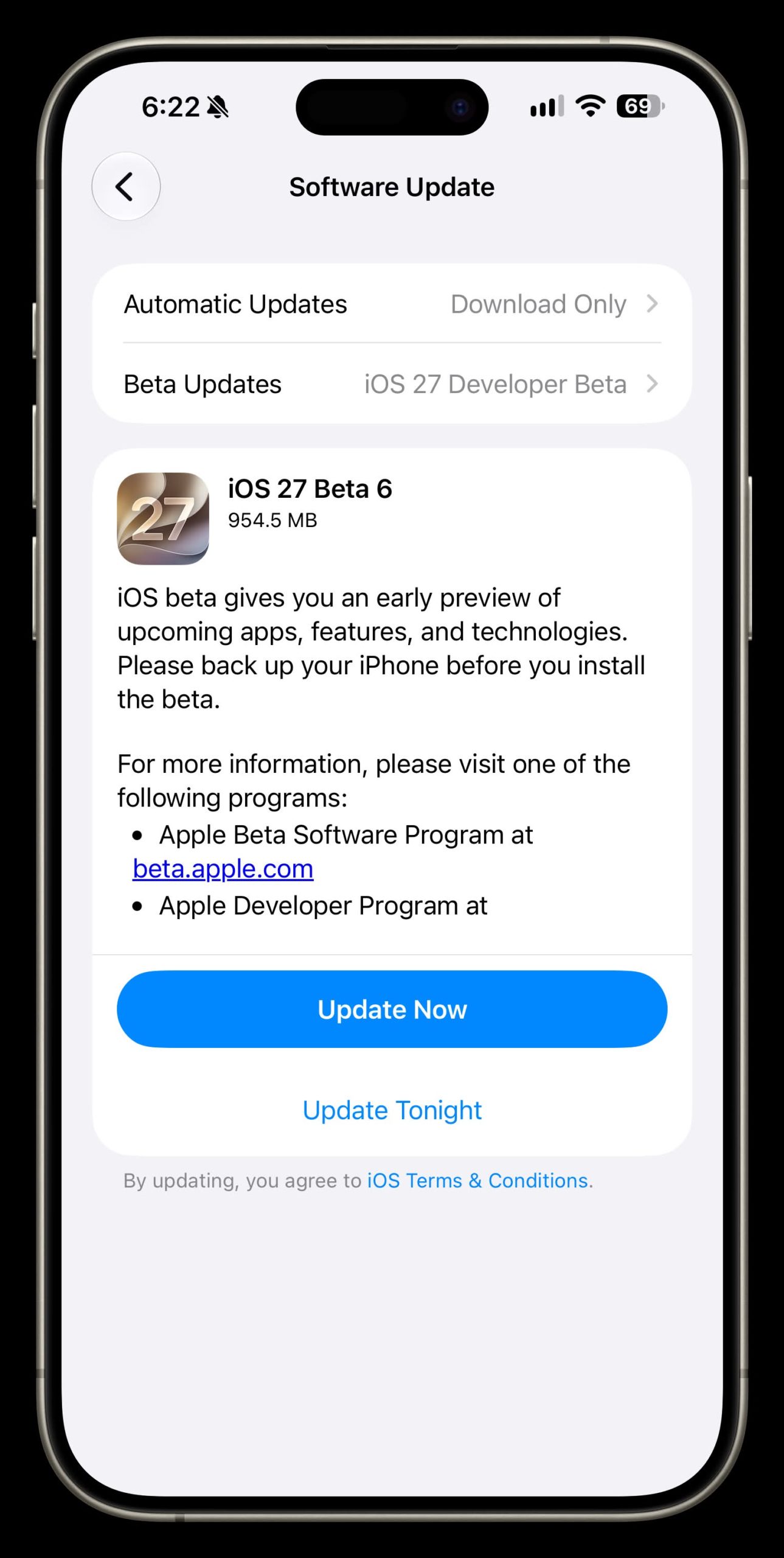
Дар хотир доред, ки нармафзори бета метавонад хатогиҳо дошта бошад ё мушкилоти мутобиқатро ба вуҷуд орад, аз ин рӯ беҳтар аст, ки онро дар дастгоҳе насб кунед, ки шумо метавонед мушкилот ё барқароркуниро ҳал кунед.
3. Бонус: Бо истифода аз AimerLab FixMate, iOS 27-ро ба iOS 26 навсозӣ кунед
На ҳама аз зиндагӣ дар канори бета лаззат мебаранд. Агар iOS 27 боиси мушкилоти мутобиқат, садамаҳо, мушкилоти коршоямӣ ё дигар нороҳатиҳо гардад, шумо метавонед дар ниҳоят ба iOS 26 баргардед.
Як варианти қобили баррасӣ аст AimerLab FixMate , як абзори таъмири системаи iOS, ки таъмири системаро дар асоси нармафзори нармафзор таъмин мекунад ва баъзе сенарияҳои пастшавии iOS-ро дастгирӣ мекунад. AimerLab мегӯяд, ки FixMate метавонад мушкилотеро ба монанди хатогиҳои навсозӣ, хатогиҳои система, экранҳои часпида ва дигар мушкилоти системаи iOS ҳал кунад.
Қадамҳо бо истифода аз FixMate барои паст кардани iOS 27 ба iOS 26:
- Насб кардани FixMate: AimerLab FixMate-ро дар компютери худ зеркашӣ ва роҳандозӣ кунед.
- iPhone-и худро пайваст кунед: iPhone-ро ба компютери худ бо сими USB пайваст кунед ва бигзор FixMate онро муайян кунад.
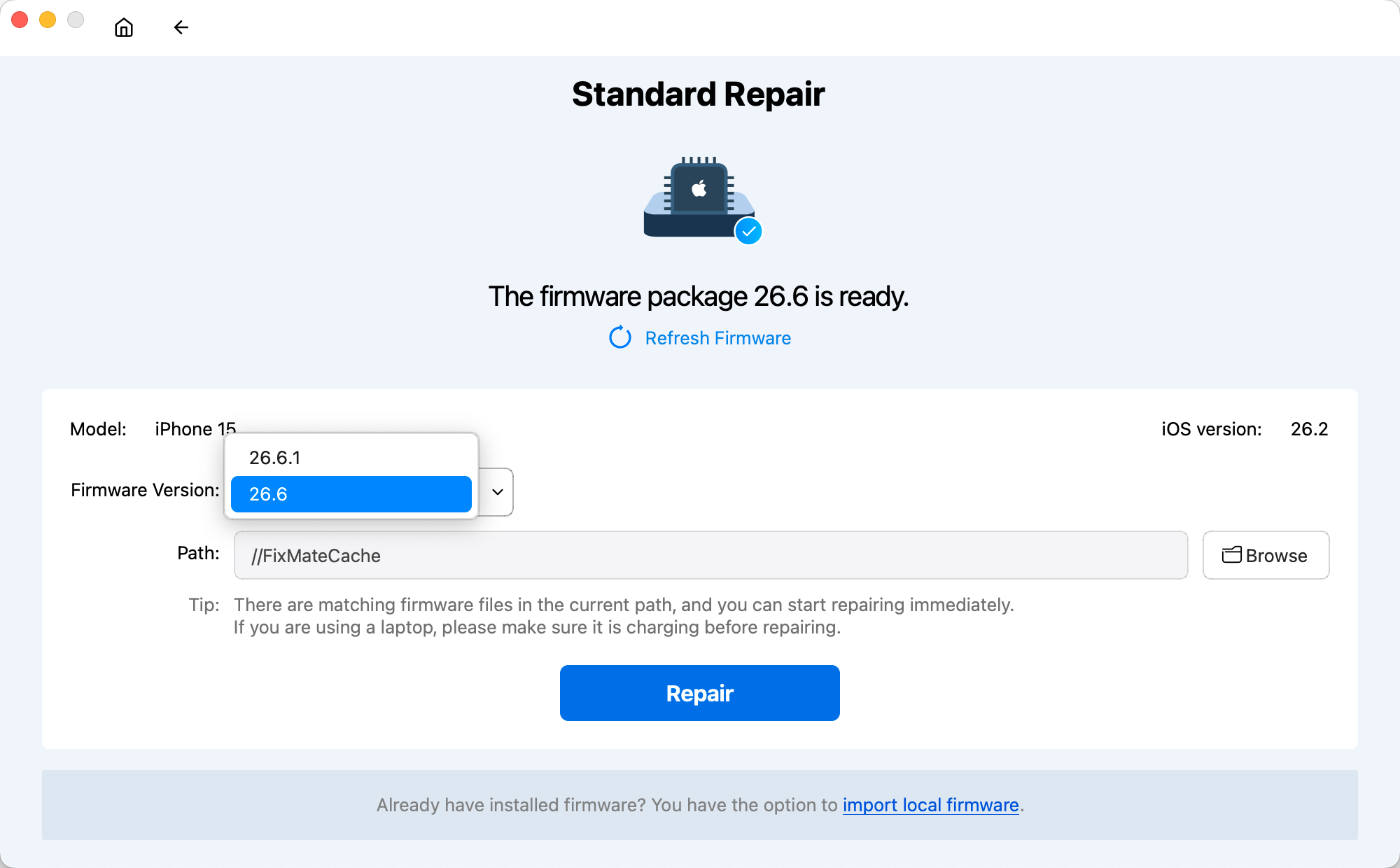
- "Таъмири система"-ро интихоб кунед: "Ислоҳи мушкилоти системаи iOS"-ро интихоб кунед ва ҳолати мувофиқи таъмирро интихоб кунед.
- Зеркашии нармафзор: Бастаи дастраси нармафзори iOS 26-ро интихоб кунед ва онро зеркашӣ кунед.
- Таъмирро оғоз кунед: Дастурҳои дар экран бударо иҷро кунед, то нармафзори насбшударо насб кунед ва iPhone-и худро навсозӣ кунед.
- Аз нав оғоз кунед ва санҷед: Интизор шавед, ки раванд ба итмом расад, сипас барои тасдиқи версияи iOS Танзимот > Умумӣ > Дар бораи онро санҷед.
3. Хулоса
Насб кардани версияи бетаи iOS 27 ба шумо имконияти барвақт медиҳад, ки нармафзори ояндаи iPhone-и Apple-ро пеш аз нашри ниҳоӣ омӯзед. Раванд нисбатан содда аст: ба барномаи бетаи Apple сабти ном кунед, Танзимот > Умумӣ > Навсозии нармафзор > Навсозиҳои бета-ро кушоед, версияи бетаи дастраси iOS 27-ро интихоб кунед ва онро насб кунед.
Агар шумо iOS 27-ро насб кунед ва баъдтар қарор диҳед, ки ба iOS 26 баргардед,
AimerLab FixMate
як варианти муфид барои баррасии таъмири системаи iOS ва ҳолатҳои дастгирии пастшавии версия мебошад. Ҷараёни кори таъмир ва хусусиятҳои барқарорсозии он дар асоси нармафзори нармафзор метавонад ҳалли мушкилоти навсозии iOS-ро осонтар кунад.
Пеш аз оғози навсозии версия, ҳамеша боварӣ ҳосил кунед, ки нармафзори дилхоҳи iOS 26 барои iPhone-и мушаххаси шумо дастрас аст ва онро ҳоло ҳам насб кардан мумкин аст. Бо омодагии дуруст, шумо метавонед бо версияи бетаи iOS 27 озмоиш кунед ва дар айни замон нақшаи амалии барқарорсозиро риоя кунед.
- Чӣ тавр iOS 26-ро ислоҳ кардан мумкин аст, ки зеркашӣ то абад тӯл мекашад?
- Чӣ тавр маконҳои зуд-зуд истифодашавандаро дар iPhone дидан мумкин аст?
- Чаро iOS 26 ин қадар суст аст?
- Чӣ тавр ислоҳ кардани "Хатогӣ ҳангоми тасдиқи рамзи iPhone-и шумо рух дод"?
- Чӣ тавр ислоҳ кардани "Анҷом дар iPhone нав" дармонда?
- Чӣ тавр файли iPhone-ро, ки дар интизорӣ банд мондааст, ислоҳ кардан мумкин аст?
- Чӣ тавр Pokemon Go-ро дар iPhone қаллобӣ кардан мумкин аст?
- Шарҳи Aimerlab MobiGo GPS Ҷойгиршавии Spoofer
- Чӣ тавр ҷойгиршавии iPhone-и худро тағир додан мумкин аст?
- Беҳтарин 5 қалбакии ҷойгиршавии GPS барои iOS
- Муайянкунандаи ҷойгиршавии GPS ва пешниҳоди спуфер
- Чӣ тавр ҷойгиршавии худро дар Snapchat иваз кардан мумкин аст
- Чӣ тавр дар дастгоҳҳои iOS ҷойгоҳро пайдо кардан/мубодила кардан/пинҳон кардан мумкин аст?